Tips and Best Practices
Whenever you create an animated sequence with Dragonfly's Movie Maker, you should follow the tips and best practices outlined in this topic.
Below are some tips for creating animated sequences that are informative and meaningful:
- Decide which views of the datasets and other objects that you want to appear in your movie.
- Plan the best sequence to convey the story you want to tell.
- Decide on the format for your movie — wide screen or standard — before you begin to produce your animated sequence.
- Begin your image sequence with a familiar frame of reference for your audience. For example, if your audience can easily recognize a part of the model from a certain angle, you can start with the view at that angle and then rotate and zoom in as needed to focus on a region of interest.
- Avoid changing too much at once. Change the view over a series of key frames so that the audience can follow the sequence and think about what is shown.
Below is a list of best practices that you should follow when creating animated sequences:
-
Make sure that all visuals are loaded and shown before starting the Movie Maker.
Note The addition and/or removal of objects may cause some interpolation issues during playback and can alter the visual outcome of the timeline. If you add newly loaded or created objects to the timeline, then the existing key frames will have undefined states for those new objects. Although you can add or remove objects during the creation of a movie, the existing key frames will have undefined states for those new objects and will be marked as such, as shown below.
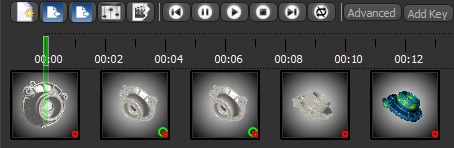
You should verify if any adjustments is required to marked key frames and update them to remove their dirty state. This will help ensure smooth transitions between key frames.
-
Use the Highlight and Labeled data sliders in the Opacity and color settings box to show or hide ROIs and multi-ROIs between different key frames.
-
Use the Opacity slider in the 3D settings box to show or hide meshes between different key frames.
-
You cannot switch between Orthographic and Perspective projection modes after the Movie Maker is started.
-
If you enable Auto focus, you may have to adjust the Strength and Depth of field settings to achieve optimal results, particularly when zooming in and out.
-
You can define shortcut keys — Select next key frame in the Movie Maker and Select previous key frame in the Movie Maker — to cycle rapidly through key frames (see Configured Actions for the Movie Maker).
